
Seamless Android Auto Setup Guide for Your Vehicle

Getting your car ready with Android Auto can feel like a big task, but I’m here to make it simple and fun. Whether you want to listen to your favorite playlists, get directions, or stay connected hands-free, Android Auto is a fantastic tool. Let’s walk through the android auto setup guide step-by-step so you can enjoy a smooth ride with all the tech perks.
Why You Should Follow This Android Auto Setup Guide
If you’ve ever tried to connect your phone to your car and felt lost, you’re not alone. Android Auto makes driving safer and more enjoyable by putting your apps on your car’s display. This guide will help you avoid common pitfalls and get everything working quickly.
Here’s what you’ll learn:
How to prepare your phone and car
What cables or wireless options you need
Step-by-step connection instructions
Tips for troubleshooting
By the end, you’ll be ready to hit the road with confidence.

Step-by-Step Android Auto Setup Guide
Let’s start with the basics. First, make sure your phone is compatible. Android Auto works with most phones running Android 6.0 or higher. Next, check your car’s infotainment system. Many newer models support Android Auto either wired or wirelessly.
Here’s the simple setup process:
Download the Android Auto app from the Google Play Store if it’s not already installed.
Turn on your car and make sure the infotainment system is ready.
Connect your phone to the car using a USB cable or via Bluetooth for wireless models.
Follow the prompts on your phone and car screen to grant permissions.
Customize your settings like notifications and app preferences.
Once connected, you’ll see your phone’s compatible apps on the car’s display. You can use voice commands or touch controls to navigate.
Do I Need a Special USB Cable for Android Auto?
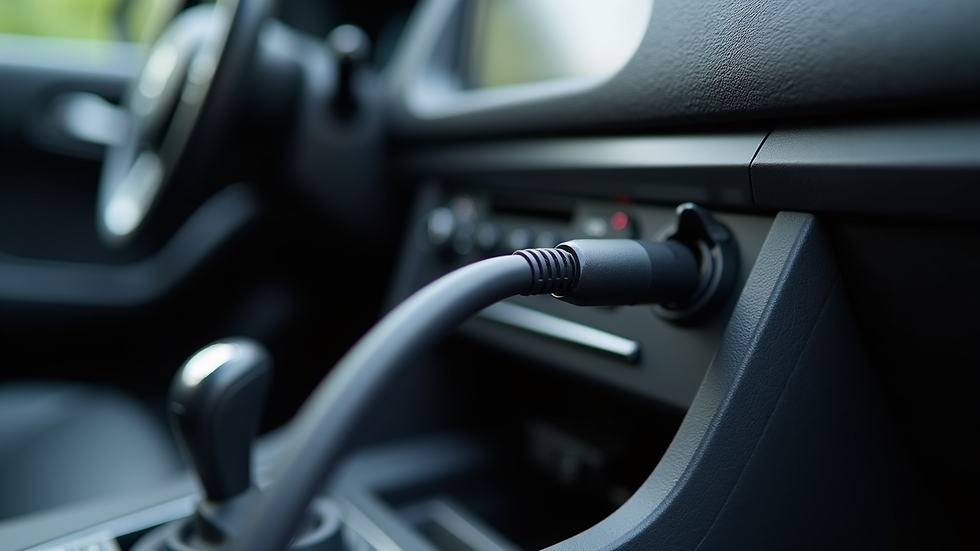
This is a common question, and the answer is yes and no. You don’t need a branded cable, but the quality of your USB cable matters a lot. A cheap or damaged cable can cause connection issues or slow data transfer.
Here’s what to look for in a USB cable:
USB 2.0 or higher for faster data transfer
Good build quality to avoid fraying or loose connections
Compatible connectors (usually USB-C or Micro USB on your phone, USB-A on the car)
If you want the best experience, use the cable that came with your phone or buy a reputable brand. Avoid cables that are only designed for charging because they might not support data transfer.
Tips for a Smooth Android Auto Installation
Now that you know the basics, here are some extra tips to make your android auto installation flawless:
Keep your phone’s software updated. Android Auto works best with the latest Android version and app updates.
Restart your phone and car system if the connection doesn’t work the first time.
Clear cache and data for the Android Auto app if you experience glitches.
Use a wireless connection if your car supports it for more convenience.
Disable battery saver mode on your phone while using Android Auto to avoid interruptions.
If you run into issues, check your car’s manual or visit the official Android Auto support page for specific troubleshooting.
Making the Most of Android Auto Features
Once you’re set up, Android Auto can do a lot more than just play music or show maps. Here are some features you might want to explore:
Voice commands with Google Assistant to send texts, make calls, or get weather updates without taking your hands off the wheel.
Third-party apps like Spotify, WhatsApp, and Audible for entertainment and communication.
Customizable home screen to prioritize your favorite apps.
Real-time traffic updates and rerouting to save time on your commute.
Using these features will make your driving experience safer and more enjoyable.
Ready to Upgrade Your Drive?
Setting up Android Auto is easier than you think, and the benefits are worth it. With this guide, you can confidently connect your phone and enjoy hands-free control of your apps while driving. Remember, a good USB cable and keeping your software updated are key to a smooth experience.
If you want to learn more or get detailed instructions, check out this android auto installation resource. It’s packed with helpful tips and official info.
Happy driving and enjoy your connected car journey!



Comments